
💡 Pre-requisite: to be able to install and configure Viva Sales for Outlook you need Microsoft 365 Administrator access.Microsoft has recently released Viva Sales as a companion app , which is designed to enhance the seller experience for salespeople by integrating their CRM platform with MS Outlook and Teams. Viva Sales for Outlook allows salespeople to sign in and access their CRM system (Dynamics 365 or Salesforce) from Outlook, create new contacts with prefilled information, view account and opportunity details, and save emails to their CRM system and much more.
This post will guide you through a simple 5-step process to install the Viva Sales app and enable users in your organization to utilize its key features.
Step 1: Navigate to App Source to locate Viva Sales for Microsoft Outlook app
To begin the installation, you can find the Viva Sales for Microsoft Outlook app on the Microsoft App Source Marketplace using either of the two available paths.
1. Via Microsoft 365 Admin Center
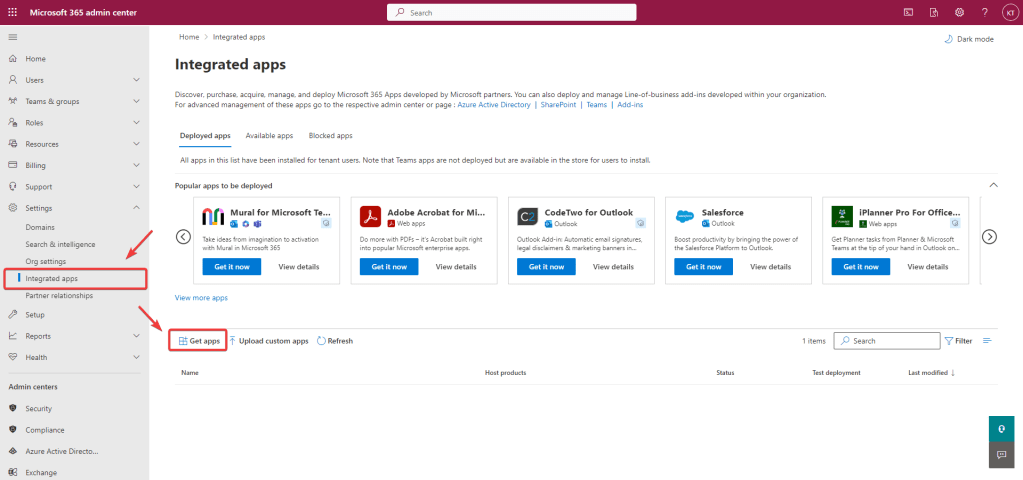
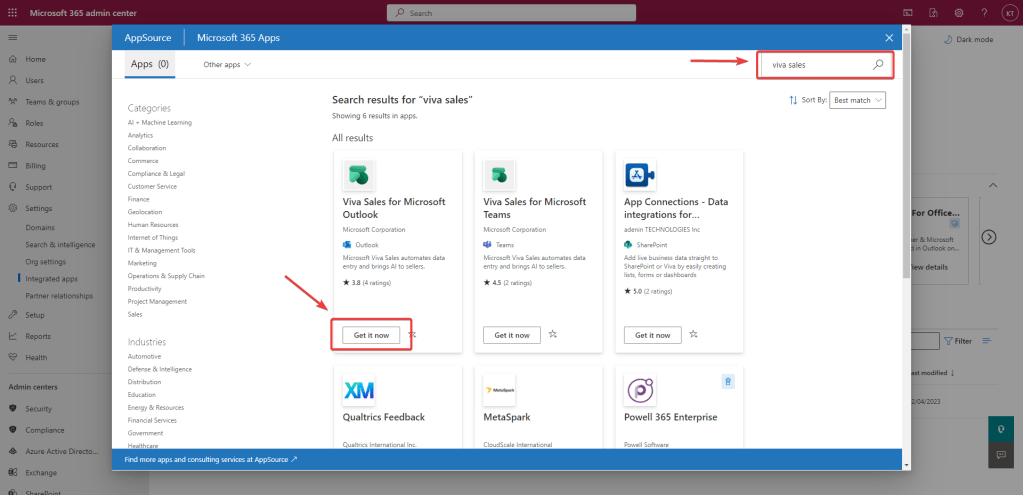
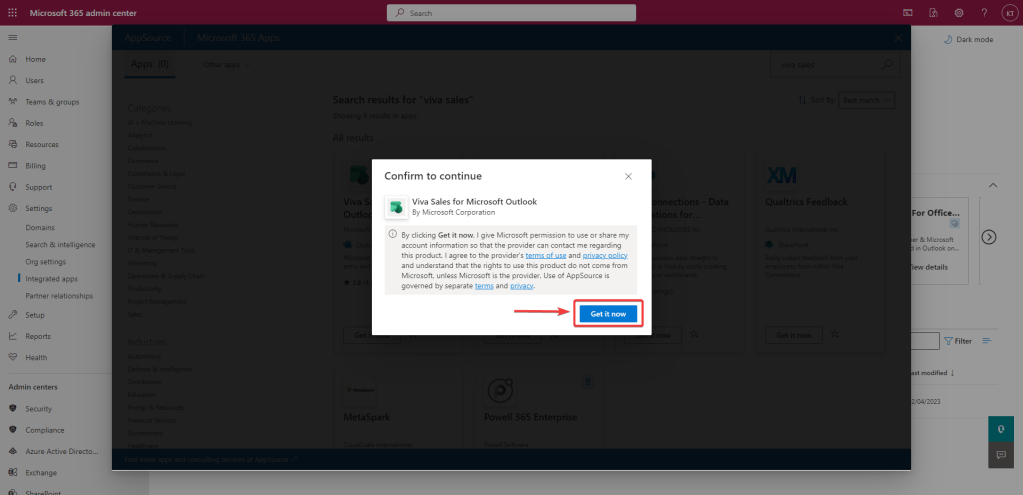
Once you navigate through > Settings > Integrated Apps and click on Get Apps button, App Source will launch in a modal dialog to allow you to search and find the app within admin center.
2. Via Microsoft App Source Marketplace
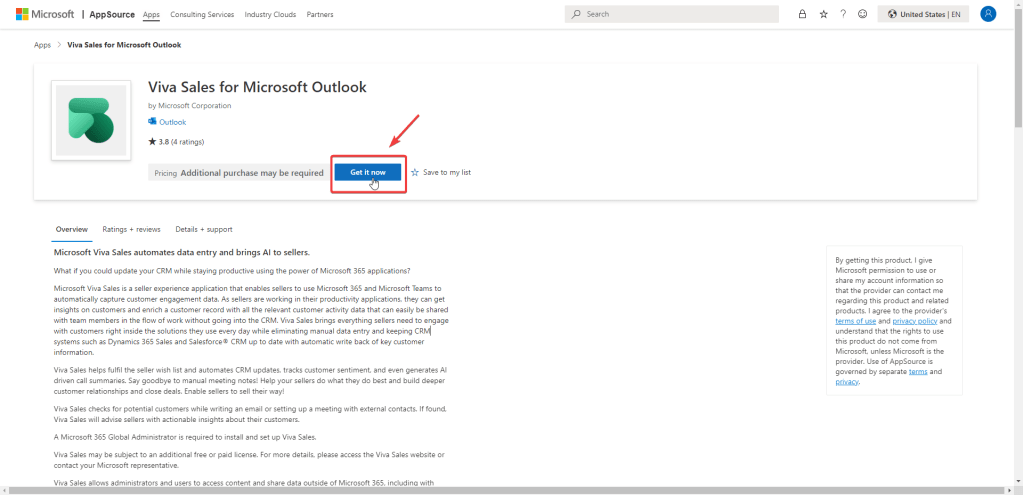
When you navigate through this path, you will be redirected to Microsoft 365 admin center to complete the installation.

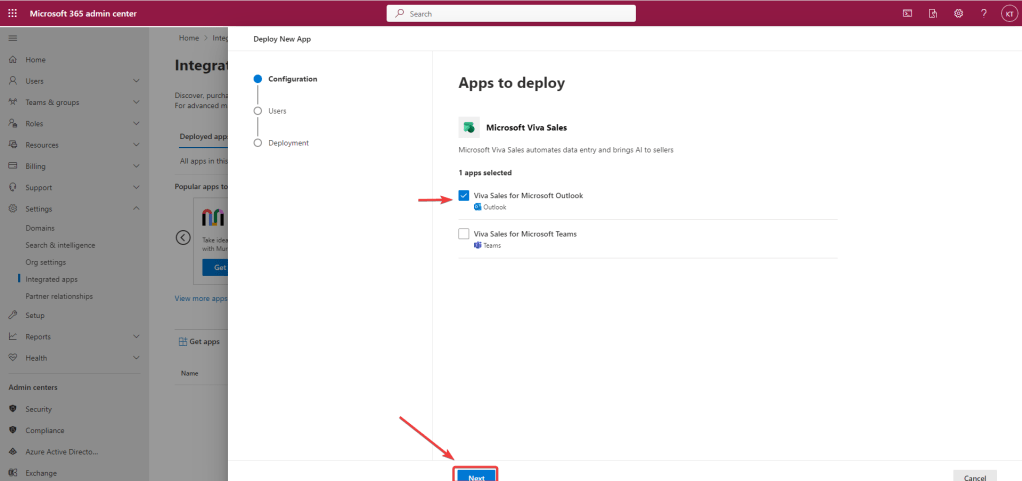
Step 2: Select Apps to deploy
While Viva Sales offers companion apps for both Outlook and Microsoft Teams, this post will solely focus on setting up the app for Outlook. However, it’s worth noting that you have the option to deploy the app for both platforms simultaneously or separately.
Step 3: Add users
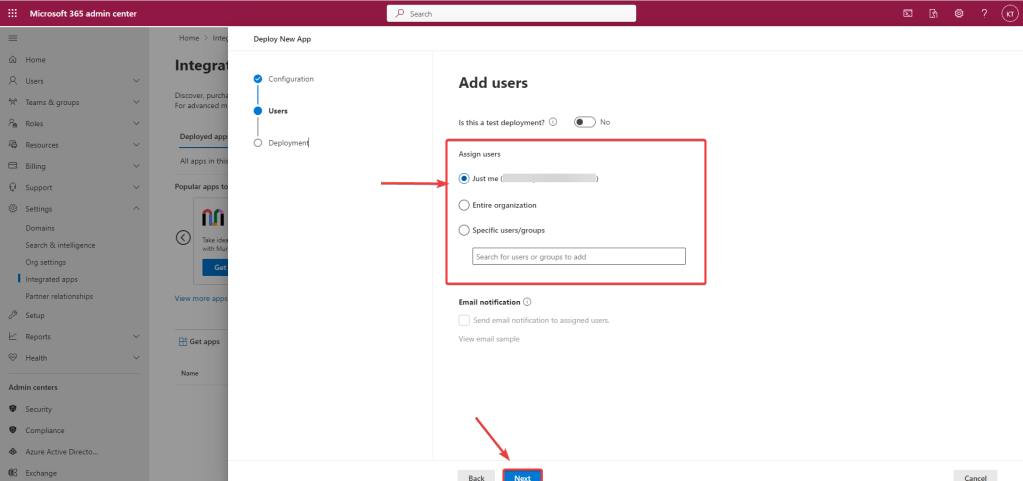
During this step, you can choose which users will be assigned the Viva Sales app. You have the option to limit it to yourself initially and then assign it to additional users after installation. Alternatively, you can assign it to the entire organization so all users have immediate access after deployment. Another option is to initially release the app to a selected list of users or groups within your domain.
Step 4: Accept permission requests
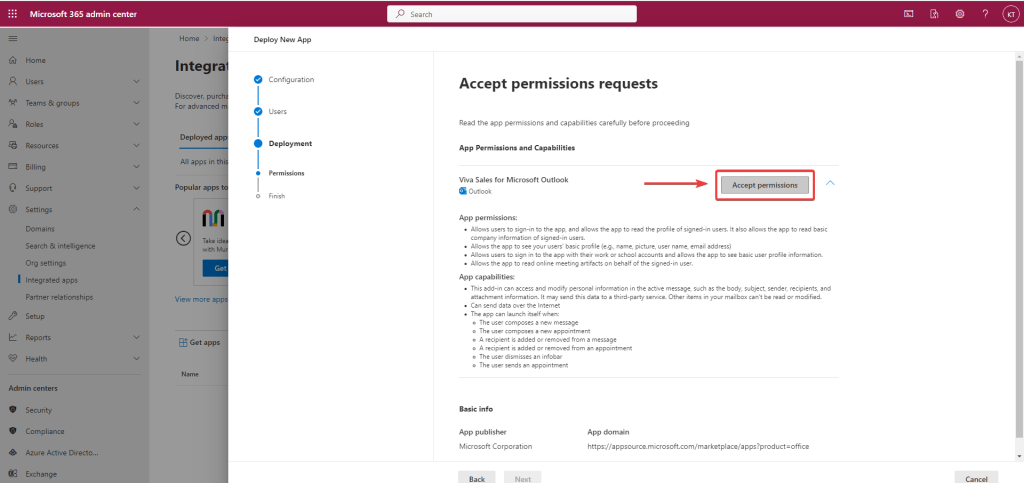
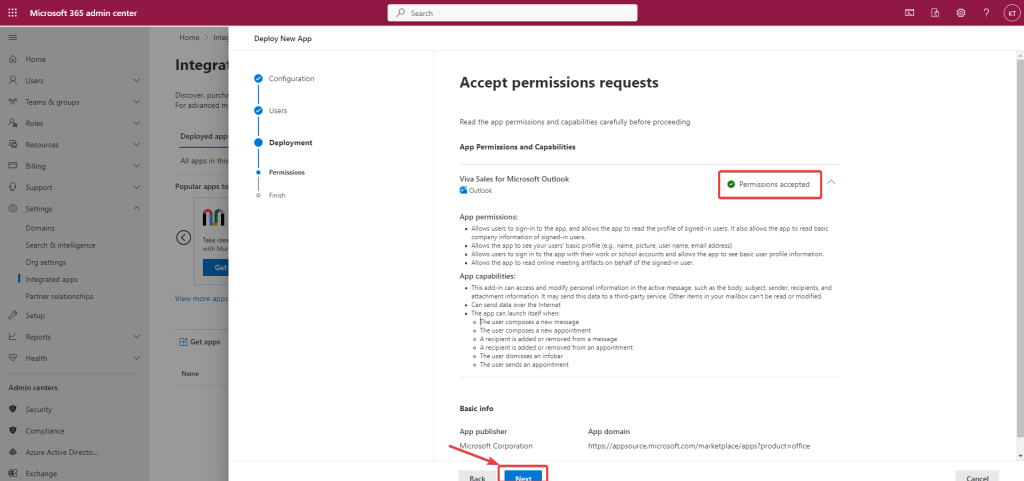
To function as an add-on to Outlook, the Viva Sales app needs permission to access and update data from email messages, appointment details, and other Outlook contexts. The app also requires authorization to act on behalf of the user for necessary operations in Outlook and Dynamics 365. All permissions and capabilities required by the app are outlined in this step for the admin to provide consent based on their organization’s security policies. It’s important to carefully review these details before enabling the app for your organization.
Step 5: Review and Finish Deployment
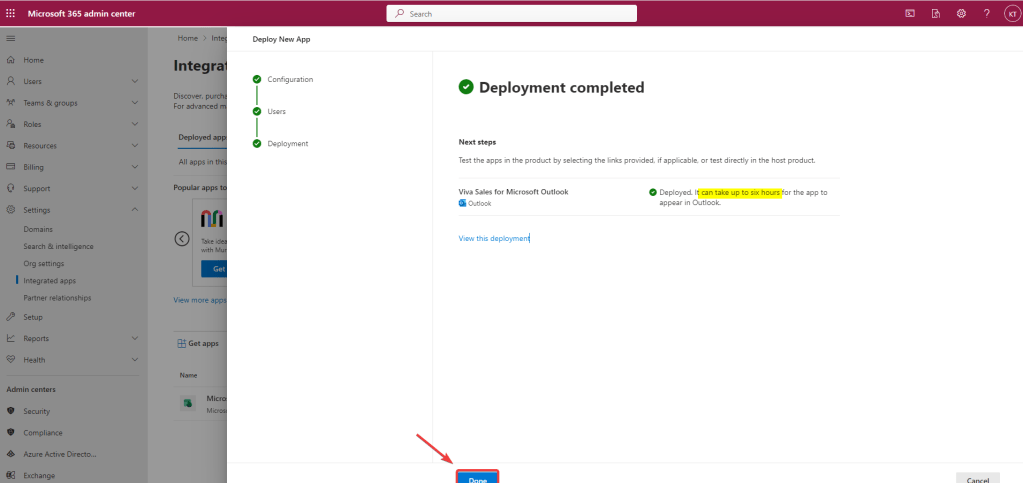
Once all previous steps completed you can then review the information provided to finalise the deployment. Once you confirm, deployment process will start executing asynchronously at the backend and as mentioned in the information message on screen it may take up to 6 hours for your users to get the app on their Outlook.

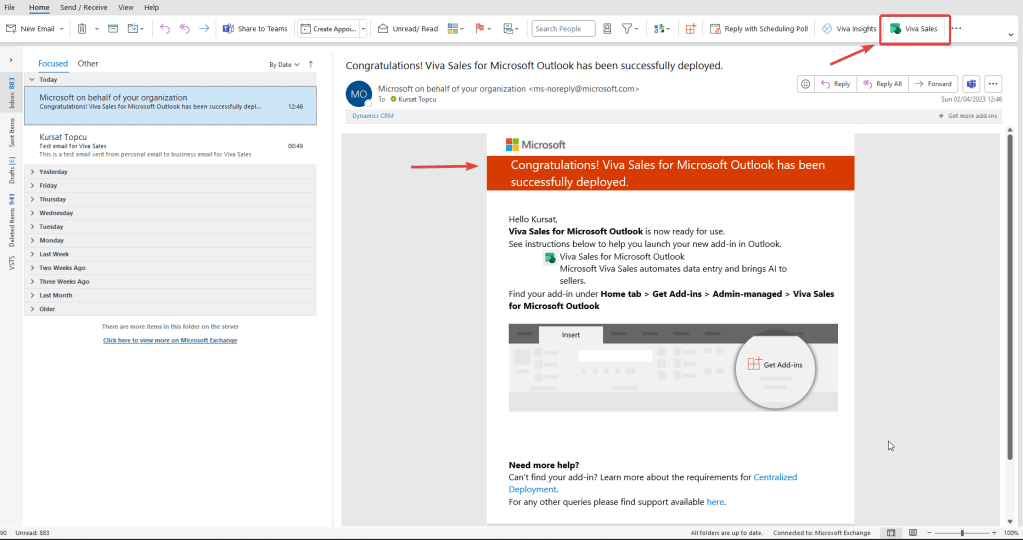
Once deployment is complete, users will receive a confirmation email from Microsoft including the guidance on how to start using the app.
 kursat topcu