
In the ever-evolving landscape of technology, Microsoft has once again positioned itself at the forefront of innovation with the introduction of Microsoft Copilot. This transformative tool is designed to redefine how professionals across various industries interact with digital content, data analysis, and computational tasks. This blog post aims to provide a comprehensive overview of Microsoft Copilot, including its functionalities, example use cases, and the types of Copilots available.
What is Copilot?
Microsoft Copilot is an AI-powered assistant designed to make your life easier, whether you’re a developer, writer, or creative thinker. Think of it as your trusty sidekick—an intelligent companion that assists you in various tasks.
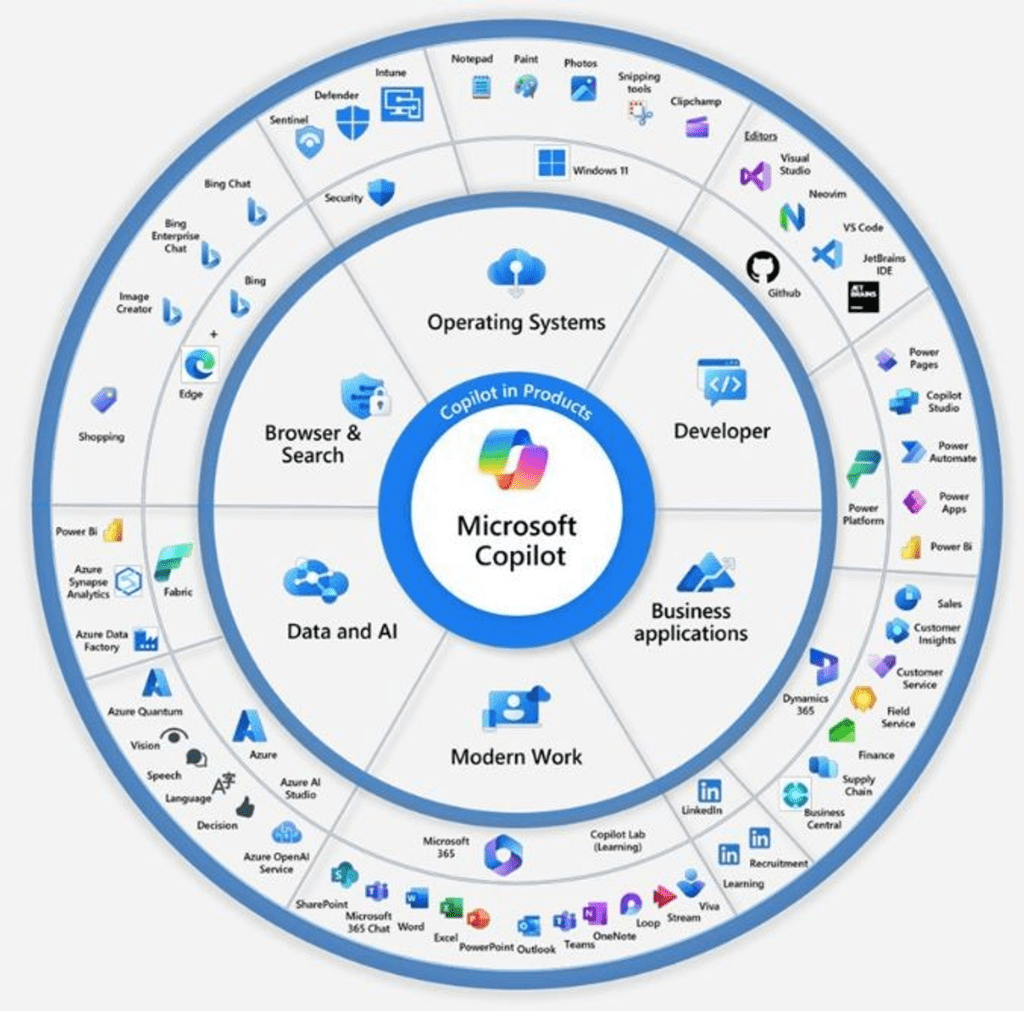
I really like this image that shows how central Microsoft Copilot is for helping everyone get more done, from everyday tasks to big work projects. It’s like having a helper for your own web searches and making those boring tasks quicker to finish, while also being a powerhouse for tech experts who need a boost in their complex work. Plus, when it’s used in businesses, it acts like the perfect partner, making sure companies get the most out of their investments by pushing the limits of what they can achieve in terms of productivity and success.
This picture perfectly captures the big picture of what Microsoft Copilot does. It’s not just a tool; it’s like a right-hand man for anyone who uses it, making work and personal tasks a lot smoother and pushing us to do our best, no matter the job.
3 paths on your Copilot Journey

Path 1: Adopt Copilot Assistants offered by Microsoft
Microsoft Copilot extends its capabilities across a variety of platforms, ensuring that no matter your profession or need, there’s a Copilot designed for you. If you identify a fit with built-in capabilities of any offered Copilots by Microsoft, that could be your shortest journey for productivity and success.
Let’s explore the array of Copilot products available, highlighting their key features and potential applications:
- Dynamics 365 Copilot
- Description: Provides AI-driven insights within Dynamics 365 to support better business decisions.
- Top Features: Summarizes customer interactions, forecasts sales trends, and automates repetitive tasks.
- Use Cases: Enhancing CRM effectiveness, sales prediction accuracy, and operational efficiencies.
- Power Platform Copilot
- Description: Assists in creating custom apps, automating workflows, and analyzing data with ease.
- Top Features: Offers design suggestions, auto-generates code for automation, and delivers insightful data analysis.
- Use Cases: Building custom applications, streamlining complex workflows, and enabling informed decision-making.
- Copilot for Azure
- Description: Aids Azure users in managing and optimizing their cloud environments with the power of AI.
- Top Features: Automated cloud resource management, AI-driven cost optimization suggestions, and security compliance assistance.
- Use Cases: Streamlining cloud operations, reducing costs through intelligent resource allocation, and ensuring security standards are met efficiently.
- Copilot for Service
- Description: Enhances customer service experiences by providing AI-powered support and insights.
- Top Features: Real-time customer query resolution suggestions, sentiment analysis to gauge customer satisfaction, and automated response drafting for common inquiries.
- Use Cases: Improving response times and quality in customer service, understanding customer needs better through sentiment analysis, and streamlining the customer support workflow.
- Microsoft 365 Copilot
- Description: Seamlessly integrates with Microsoft 365 applications to boost productivity across Word, Excel, PowerPoint, and more.
- Top Features: Aids in content creation, simplifies data analysis, and guides presentation design.
- Use Cases: Crafting documents, analyzing and visualizing data, and creating engaging presentations efficiently.
- Copilot for Windows
- Description: Integrates deeply with the Windows operating system to provide assistance across applications and tasks.
- Top Features: Contextual assistance, task automation, and personalized recommendations.
- Use Cases: Simplifying daily tasks, enhancing productivity, and personalizing the Windows experience.
- Viva Sales Copilot
- Description: Enhances the sales experience by integrating CRM platforms with Outlook and Teams.
- Top Features: Automatically fills in CRM data, crafts personalized emails, and delivers actionable insights from customer data.
- Use Cases: Streamlining sales workflows, improving customer interactions, and automating data entry.
- GitHub Copilot
- Description: Supports developers by suggesting code and functions in real-time, enhancing coding workflows.
- Top Features: Context-aware code suggestions, multi-language support, and adaptive learning from user coding patterns.
- Use Cases: Speeding up software development, improving code quality, and facilitating learning of new languages or frameworks.
- Copilot Studio
- Description: A creative sandbox that allows users to craft, simulate, and test AI models and experiences.
- Top Features: Intuitive design interface, real-time AI model testing, and collaboration tools.
- Use Cases: Designing AI-driven applications, prototyping new ideas, and collaborating on innovative projects.
Each Copilot product is thoughtfully designed to address specific needs, whether it’s managing sales data, developing software, creating content, or enhancing the Windows experience. With these tools at your disposal, you’re well-equipped to navigate the challenges of the modern digital landscape with greater ease and efficiency.
Path 2: Extend Copilots
Just like with many other Microsoft platforms and tools, Copilot also offers the flexibility to be customized for unique experiences. Sometimes, you might find that the standard Copilot setup doesn’t quite hit the mark for your specific needs, possibly because it doesn’t have access to certain data or services you rely on. This is where Microsoft’s extension capabilities come into play, opening up a world of possibilities for developers or ISVs to create plugins or connectors. These custom solutions allow Copilot to seamlessly integrate with external APIs or data sources, bridging any gaps.
In enterprise environments, where integrating new solutions often involves navigating through a maze of constraints or requires additional engineering efforts, the ability to extend Copilot becomes invaluable. By tapping into these extension capabilities, you can significantly enhance the core functionalities of Copilot assistants. This means you can tailor them to work perfectly with your own APIs and data, crafting a solution that’s perfectly aligned with your specific user journeys. It’s a way to not just use Copilot, but to truly make it your own, ensuring it delivers exactly what you need, right where you need it.
Thanks to its extensive extendibility through plugins, Microsoft Graph connectors, and message extensions. Here’s a closer look at how extending its capabilities can tailor it more closely to your specific requirements:
- Plugins: These act as bridges, enabling Copilot to directly fetch and utilize external data, from the latest news to project-specific details. For those looking to integrate data from outside applications, Power Platform connectors are a particularly useful type of plugin, allowing for the creation of custom apps and workflows that feed directly into Copilot for Microsoft 365 and Power Platform.
- Microsoft Graph connectors: These connectors play a crucial role in bringing external content into the Microsoft 365 ecosystem, making it accessible through Copilot. They’re all about connecting, organizing, and managing external data, ensuring it’s readily available where and when you need it.
- Message extensions: Focused on Microsoft Teams, these extensions enable a more interactive experience by allowing users to access and share external service information directly within their chat conversations. It’s a practical way to extend Copilot’s functionality into the collaborative space of Teams.
- Microsoft Copilot Studio: Adding to the suite of extensions is Copilot Studio, a low-code environment designed for building solutions that leverage your business data. It simplifies the integration of custom data into Copilot for Microsoft 365, enabling non-technical users to add logic and data connections through an intuitive drag-and-drop interface.
Each of these extensions serves to enhance Copilot’s utility, making it not just a tool but a comprehensive assistant that can be customized to fit the intricacies of your work environment. By integrating these extensions, you can ensure that Copilot aligns with your specific data needs and workflows
Path 3: Build your own Copilot
In the realm of digital assistance, Microsoft Copilot stands out not just for its ready-to-use capabilities but also for the possibility it offers to craft a Copilot that’s uniquely yours. Using a blend of Azure OpenAI, Cognitive Search, Microsoft Copilot Studio, and other Microsoft Cloud technologies, you can develop a conversational AI that speaks directly to the needs of your users, integrating seamlessly with your company’s data and documents. Imagine creating a Copilot that offers a chat interface for quickly accessing help desk tickets or knowledge base articles, simplifying the search process with a conversational UI that cuts through the clutter.
Building Blocks for a Custom Copilot
- Conversational AI with Azure OpenAI and Cognitive Search: This setup enables the creation of an advanced platform where users can interact with company data and documents in natural language. It’s about making information retrieval and task completion as intuitive as speaking.
- Solution Accelerators and Samples: To jumpstart your custom Copilot development, Microsoft provides accelerators and samples. These resources are designed to guide you through integrating your data with Azure OpenAI models, embedding conversational AI into your applications, and more.
- Microsoft Copilot Studio: Beyond extending the capabilities of Copilot for Microsoft 365, Copilot Studio offers a low-code environment for building your own AI-driven chatbots and GPTs. Whether it’s for simple queries or complex problem-solving, Copilot Studio makes the creation process accessible, with the added benefit of integration across digital platforms like websites, mobile apps, and even Microsoft Teams.
Envisioning Your Custom Copilot
Creating your own Copilot is more than just a technical project; it’s an opportunity to enhance how your organization interacts with data, simplifies tasks, and communicates both internally and externally. With tools like Azure OpenAI, Cognitive Search, and Copilot Studio, you’re equipped to build an AI that not only understands your business but also enhances your digital ecosystem with intuitive, conversational interactions.
Conclusion
Microsoft Copilot is here to shake up the way we work, serving up a variety of AI-powered tools that promise to make our professional lives easier and more productive. Whether it’s diving into the wealth of pre-built assistants, tweaking things with plugins for that perfect fit, or crafting your very own Copilot with the help of Azure OpenAI, there’s something for everyone looking to up their game. It’s about making work feel less like work and more like achieving with a trusted friend by your side. And this is just the beginning! I’m excited to keep exploring and sharing insights on Copilot and other revolutionary tools. Stay tuned for more posts where we’ll continue to uncover the future of work together, making it smarter, faster, and a whole lot more fun.
Continue reading my next post in this blog series: Transforming Productivity: How to Harness the Power of Copilot in Microsoft 365

 kursat topcu