A Complete Guide to the New Copilot Preview Feature in Dynamics 365 Model-Driven Apps

Introduction

Diving into the Dynamics 365 model-driven apps and Microsoft’s blending AI into Power Platform, the preview of the Copilot feature is catching the eye. The introduction of Copilot into model-driven apps infuses conversational AI directly into the core of app navigation and data management, significantly enhancing the intuitiveness of daily operations. This exciting feature has been eagerly anticipated, promising to transform the user experience by seamlessly integrating AI assistance at the heart of our core CRM solutions. Here’s a closer look at how this feature can be a significant advantage in your workflow.

What is Copilot in Model-Driven Apps?

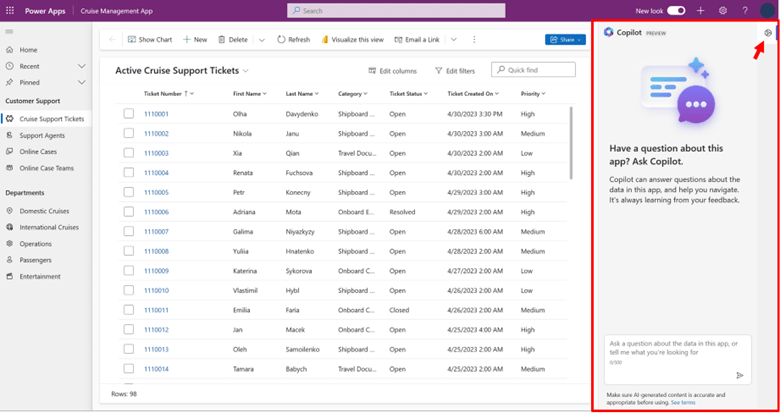
Copilot in model-driven apps is Microsoft’s latest step in blending AI with everyday business processes. It’s designed to assist users by offering insights and navigation through natural language queries, making it a potential advantage for productivity.

  • Capabilities: Copilot answers queries about specific data tables, guiding users with actionable insights and facilitating smoother workflows. For instance, it can provide summaries of sales data or update records without manual input.
  • Intended Use: It serves as an AI assistant, providing quick answers to your data-related questions and guiding you through the app’s functionalities without you needing to click through multiple screens.
Setting Up Copilot in Your Dynamics 365 Environment

Getting Copilot up and running involves a few key steps but promises a significant boost to how you interact with your Dynamics 365 environment.

  • Enable Copilot Feature:
    • Navigate to the Power Platform admin center and toggle on the Copilot feature under the ‘Product > Features’ menu.
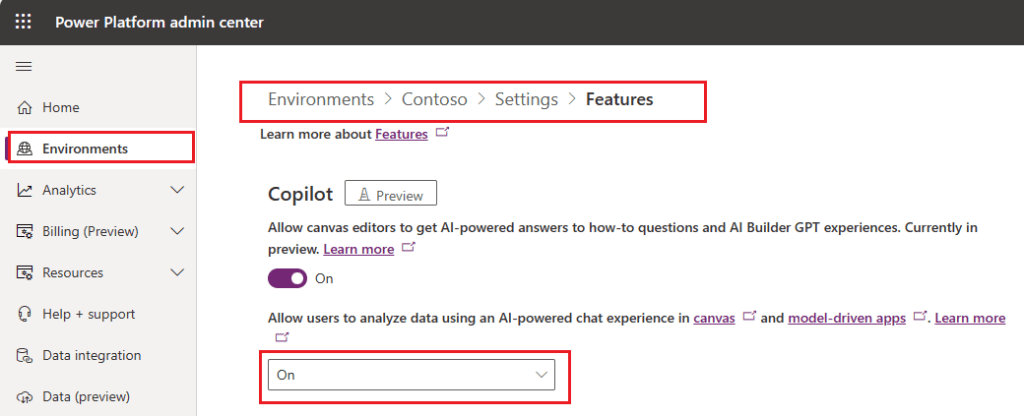
  • Configuring Your Environment:
    • Ensure your system is set to receive the latest updates by selecting the Monthly update channel in your environment settings. This keeps your system in sync with the newest features and improvements.
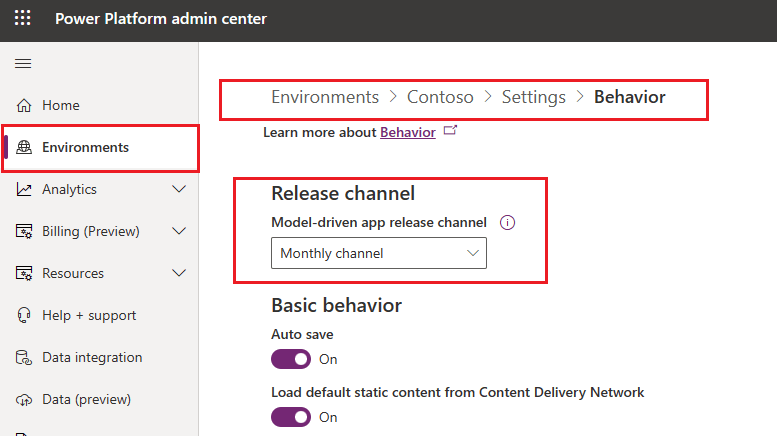
Leveraging Copilot Effectively

To get the most out of Copilot, here are some practical tips:

  • Optimize Your Queries: Use simple, direct questions to get the best responses. For example, instead of asking, “How many?”, specify what you want to know, like, “How many new support tickets were opened today?”
  • Navigate Efficiently: Directly command Copilot to navigate to specific pages within the app, such as, “Take me to the customer feedback form.”

Feedback and Enhancements

Your feedback is crucial for improving Copilot during its preview phase:

  • Providing Feedback: Easily submit feedback through the Copilot interface in your app. This helps Microsoft refine the features according to user needs.
  • Adapt Based on Feedback: Microsoft uses your input to continuously enhance Copilot, aiming to better align its functionality with real-world business requirements.

Limitations to Keep in Mind

While Copilot introduces a range of possibilities, there are a few limitations during this preview phase:

  • Preview Nature: The feature is not finalized for production use and might have limited functionality.
  • Geographical and Language Availability: Currently, it’s only available in the US region and requires the English language setting.

Conclusion

The Copilot feature in Dynamics 365 model-driven apps is paving the way for a more interactive and efficient approach to managing business applications. By integrating this AI-driven assistant into your daily routine, you can enhance how you interact with data, streamline operations, and perhaps most importantly, save time. As you explore this new tool, remember that your insights and usage will help shape its future development, making it even more tailored to meet complex business needs.

For more details on setting up and using Copilot in model-driven apps, check out the official Microsoft documentation:
Who else is viewing the same record now? – 2023 Wave 1 Update for Power Platform – New Feature for Collaboration

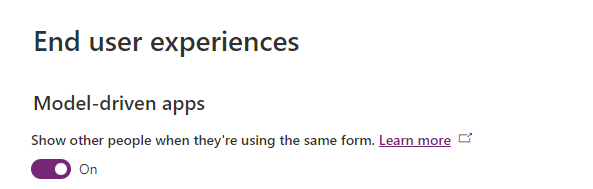
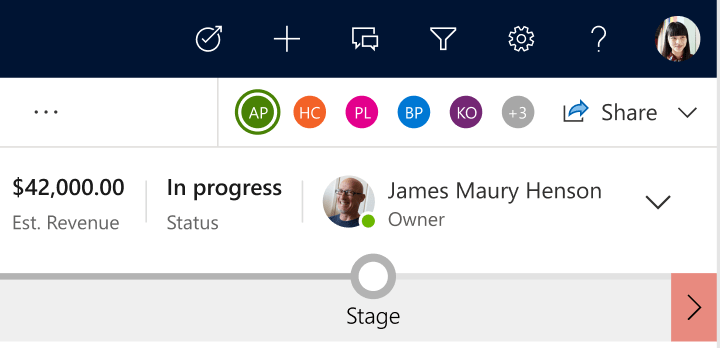
With the release of the 2023 wave 1 update, Dynamics 365 / Power Platform users will have access to a new feature that allows them to see which colleagues are viewing the same record as them.

This new feature is a significant addition, as it enables users to collaborate more effectively and streamline their workflows.

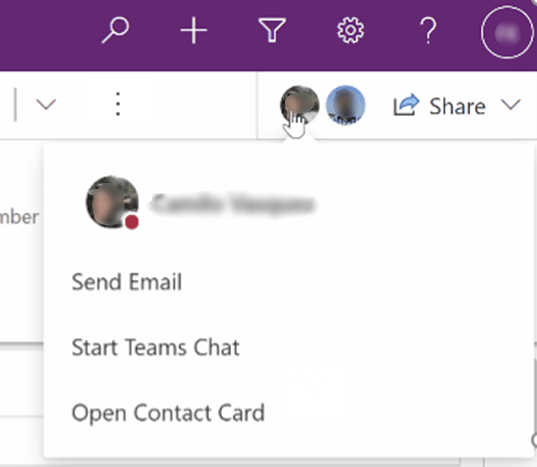
To use this new feature, users can simply navigate to the record they are working on and look for the section allocated in the top right corner of the screen.

Here, you will see a list of all the colleagues who are currently viewing the same record as you. You can click on a colleague’s name to send them a message or start a chat with them.

Key benefits

  • Improved Collaboration: With the ability to see which colleagues are viewing the same record as you, it becomes much easier to collaborate around contextual business data and processes. You can quickly identify who else is working on the same record, and you can reach out to them for collaboration. This feature has the potential to avoid boundaries and silos across different user groups working on the same record and it will encourage people to reach out to eachother for sharing more information.
  • Reduced Duplication of Effort: When multiple colleagues are working on the same record, there is a risk of duplication of effort. However, by viewing who else is working on the same record, you can avoid this problem. You can communicate with your colleagues and coordinate your efforts to ensure that you are all working together efficiently.
  • Increased Productivity: When you know who else is working on a record, you can make more informed decisions about when to take action. For example, if you see that a colleague is already working on a record, you can hold off on making any changes until they are finished. This can help avoid conflicts and increase overall productivity.

Let’s consider an example use case;

  • Assume you are a Salesperson preparing for your next client meeting to present your pitch for a cross-sell product for your client.
  • While you are on the way to your client meeting, when you navigate to Client record in Dynamics 365 / Power Platform to review latest updates on opportunites and activites, you notice a Customer Service Representative is viewing the record at the same time.
  • You can quickly initiate a teams chat with the person to check if there is any service related matters you should be aware of before meeting the client. Consider a scenario where a customer service case has been recently raised, and the client has a negative sentiment towards the product you plan to pitch for a cross-sell. This simple visibility and collaboration opportunity can provide you opportunity to re-plan your engagement in most efficient way to make your presentation/meeting a success.

Key technical/functional highlights

  • You can benefit from this feature on all entities/tables including custom entities.
  • You can enable/disable this feature on your environment as needed. There is a setting under Environments > Settings > Collaboration which can be controlled by administrators in Power Platform Admin Center. As per documentation from Microsoft for 2023 Wave 1 updates, this will be enabled by default as part of the release.

References:

https://learn.microsoft.com/en-us/power-platform/release-plan/2023wave1/power-apps/see-colleagues-who-are-viewing-same-records-as

https://learn.microsoft.com/en-us/power-apps/user/collaboration

3 Pillars of New Look and Feel for Model Driven Apps on 2023 Wave 1 Update for Power Platform / Dynamics 365

Over many years of experience I had in Dynamics platform I am familiar with Microsoft’s continous and frequent updates on user interface and user experience. Although the main focus has always been to keep the platform up to date with trends of technology, I should be honest to admit that it was always challenging to maintain user adoption and technical alignment on complex enterprise solutions/workflows.

With the release of the 2023 Wave 1 update, Microsoft has introduced a new look and feel for model-driven apps. This new look comes with updated user experience on 3 main pillars; new styling on forms and views, new “Fluent-based controls”, and new Power Apps grid. In this blog post, we will discuss those new changes and what they mean for Dynamics 365 users as well as how to configure and control them in your environments.

New styling on forms and views

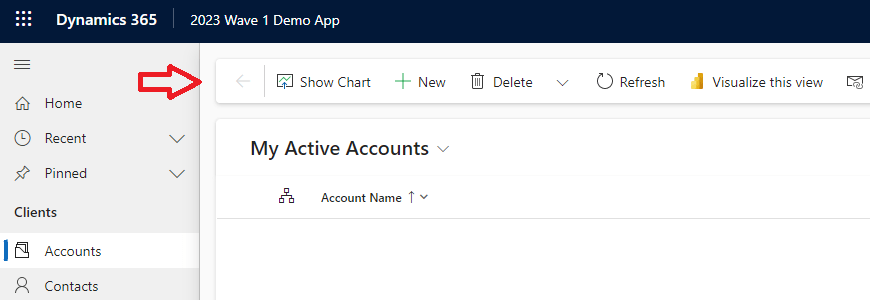
New command bar experience provides more consistent and familiar look and feel as in other Microsoft apps. Elevated separate section makes it more visible on top of the forms and view as a container of available actions for the context.

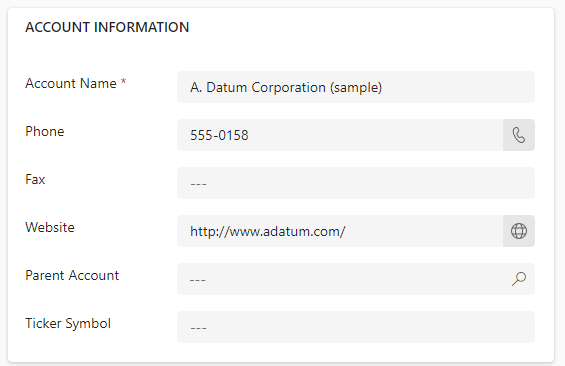
Form page with new look also follows the same experience to have elevated section containers with rounded rectangles.

Header section is pinned on top of the form as a frozen pane. This is one of the key improvements that users have been asking for a while. Especially for the forms which contain a business process flow along with multiple sections of controls to scroll to the bottom, it would provide more efficient and productive experience for naviagation within the form.

Here is an example of how an account form appears in new look

Fluent based controls

The big step forward in this update is introduction of Fluent based controls on forms. While providing a consistent and standard user experience, this strategic technical change indicates a direction on what future enhancements we can expect on form controls.

Text input, action input, lookup, and check box controls are already moved to Fluent components and more to follow in upcoming updates. Considering the same control framework is becoming the new standard on Power Apps, Canvas Apps etc. it is important to get familiar with Fluent UI for a developer/designer.

New Power Apps grid control

Besides all valuable information about Power Apps grid control, the key statement to take away from Microsoft release documentation for 2023 Wave 1 update is “This control will eventually replace all read-only and editable grids in model-driven apps”.

Although Microsoft has left it for makers/administrators to decide and control enabling Power Apps grid control as of now, I would strongly recommend to adapt this grid control into your model-driven apps as early as possible.

Key highlights/features of the control;

  • ➕ infinite scrolling for a modern data browsing experience
  • ➕ supported in sub-grids and associated grids in main forms
  • ➕ supports inline editing
  • ➖ not yet supported in dashboards

Key notes

  • The new look is only supported for Web interface to start with and is not available and not supported on mobile or outlook apps yet.
  • Updates come toggled off by default but can be enabled for any model driven app by app makers or administrators.

Conclusion

The new look and feel of model-driven apps on Dynamics 365 introduced in the 2023 Wave 1 update provides users with yet another noticably different experience. The enhanced look, increased customization options, and improved performance will make it easier for users to interact with the system and complete tasks more efficiently.

The new update is a significant step forward to align the platform with other apps via leveraging Fluent control framework and experience. It will be exciting to see how the adoption and reaction will be from the businesses and what future technical enhancements and flexibilities will Fluent controls offer.