
Introduction
In today’s dynamic sales environment, teams are navigating increasingly complex challenges, managing an ever-growing portfolio of customers and accounts. Microsoft’s introduction of Copilot for Sales addresses these complexities head-on. As a sophisticated AI assistant integrated with leading CRM platforms like Microsoft Dynamics 365 Sales and Salesforce, Copilot for Sales is designed to streamline workflows and enhance productivity. By automating routine tasks and providing actionable insights, it allows sales professionals to focus more on strategic activities and relationship building, rather than administrative details. This tool not only saves valuable time but also drives efficiency, helping sales teams to close deals more effectively and with greater precision.
What is Microsoft Copilot for Sales?
Microsoft Copilot for Sales is an advanced AI assistant specifically engineered for the needs of sales teams. This tool utilizes the power of generative AI to optimize core sales activities. This enables sales professionals to focus primarily on their essential skills—deeply understanding and engaging with their customers on a personal and impactful level.
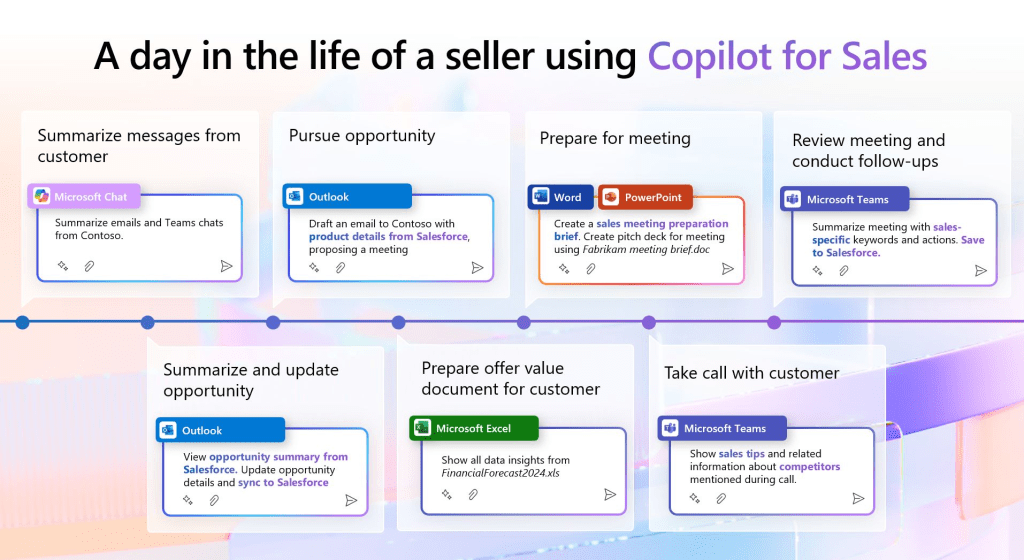
How Copilot for Sales Transforms the Sales Process:
- Smart Integration: Built upon the foundation of Copilot for Microsoft 365, Copilot for Sales extends these capabilities into CRM systems such as Dynamics 365 Sales and Salesforce. It seamlessly integrates AI-driven insights directly into everyday applications like Outlook, Microsoft Teams, and Word, streamlining workflow and decision-making processes.
- Enhanced Productivity Tools:
- Meeting Preparation: Copilot for Sales simplifies meeting preparations by automatically generating comprehensive briefs in Word, helping sales teams approach each meeting with confidence and thorough preparation.
- Email Management: It enhances email communication by summarizing key conversation points and identifying actionable insights, allowing sales professionals to focus on responses that drive value and advance the sales process.
- Dynamic Interaction: In Teams meetings, Copilot for Sales offers real-time sales insights and synthesizes post-meeting summaries that include actionable follow-up tasks and critical conversation highlights, ensuring no details are missed.
- CRM Updates: Direct CRM updates from Outlook are facilitated by Copilot for Sales, ensuring that all customer interactions are recorded accurately and promptly, without the need for manual data entry or switching between applications.
- Integration Capability:
- Works seamlessly with both Salesforce Sales Cloud and Dynamics 365 Sales.
- Can be configured to connect with other sales solutions, providing flexibility in integration.
Copilot for Sales is also anticipated to enhance its capabilities within Microsoft PowerPoint and OneNote soon, tailoring these platforms even further to support the unique needs of sales teams with advanced CRM connectivity.
Licensing for Microsoft Copilot for Sales
Before diving into the specific details of the licensing requirements, it’s important to understand the general purchase options available for Copilot for Sales. Subscriptions are licensed per user and also include access to Copilot for Microsoft 365, enhancing the value and utility of your investment.
Purchase Options
You can acquire Copilot for Sales through several convenient methods:
- Direct Purchase Online: Visit the official Microsoft website where you can subscribe directly.
- Microsoft 365 Admin Center: Administrators can purchase subscriptions directly through the admin center, streamlining management and deployment.
- Volume Licensing: For larger organizations looking to integrate Copilot for Sales across multiple users, contacting a Microsoft representative to discuss volume licensing options can be advantageous.
- Certified Cloud Partners (CSP): Engage with authorized Microsoft Partners who can offer tailored purchasing solutions and additional support.
Licensing Details
- Basic Cost: Microsoft Copilot for Sales is priced at $50.00 per user per month, with an annual commitment required.
- Required Base Licenses:
- A prerequisite for utilizing Copilot for Sales is a product license for one of the following:
- Microsoft 365 E3 or E5
- Microsoft 365 Business Standard or Business Premium
- Office 365 E3 or E5
- Note that versions of these suites that do not include Microsoft Teams are also compatible with the requirement to purchase Copilot for Sales.
- A prerequisite for utilizing Copilot for Sales is a product license for one of the following:
- Additional Licensing Options:
- Existing customers who have Copilot for Microsoft 365 licenses can add Copilot for Sales for an additional $20 per user per month.
- Dynamics 365 Sales Premium customers will need to pay $30 per user per month for the full Microsoft Copilot for Sales experience.
This licensing structure ensures that organizations can effectively budget and plan for the integration of this powerful AI tool into their sales processes, facilitating better customer interactions and streamlined operations.
Administration, Setup, and Configuration of Copilot for Sales
Overview
Setting up Microsoft Copilot for Sales requires careful administration to ensure that all features are optimally utilized and that data sharing complies with both Microsoft’s and any applicable third-party CRM terms. Here’s a summary of what you need to know about the administration roles and the setup process:
Administrator Requirements
- Installation Authority: A Microsoft 365 global administrator is needed to install and configure Copilot for Sales. This role also involves enabling data sharing with CRM services outside of Microsoft 365, which requires consent from administrators and users to link their Microsoft work accounts with their CRM accounts.
Role Assignments and Privileges
- For Dynamics 365 Sales:
- Administrators: Those assigned as System Administrator or System Customizer have automatic privileges to customize Copilot for Sales. For custom security roles, additional privileges must be manually assigned.
- Users: Sales personnel must be assigned either the Sales Manager or Salesperson role to utilize Copilot for Sales effectively. Like administrators, users with custom roles may require additional privileges specifically for accessing Copilot for Sales functionalities.
Custom Security Role Adjustments
- Dynamics 365 Administrators: If utilizing custom security roles, it is necessary to assign specific privileges such as ‘Read’ on the User table to allow necessary customization access for Copilot for Sales.
- Dynamics 365 Sellers: Similar to administrators, sellers with custom security roles need to be granted appropriate privileges to ensure they can fully leverage Copilot for Sales without encountering permission errors.
Deployment Guide
For step-by-step instructions on deploying Copilot for Sales within your Dynamics 365 environment, Microsoft provides detailed deployment guides. These resources are invaluable for ensuring a smooth setup and can be accessed through links provided in Microsoft’s official documentation.
- Resource: To view the detailed deployment guide for Dynamics 365 customers, please visit the Copilot for Sales Deployment Guide.
Security and Data Access for Copilot for Sales
Overview
Understanding how Copilot for Sales manages data security and access is crucial for users who rely on the Azure OpenAI Service to power AI-driven sales insights. Here’s a succinct overview of key points concerning data security, access, and geographical considerations associated with using Copilot for Sales.
Data Usage and Security
- Azure OpenAI Service: Copilot for Sales utilizes this service to generate AI-derived content. Importantly, the service does not use or store content for monitoring or modifying user actions or outputs; its role is strictly to facilitate the AI features of Copilot for Sales.
- Privacy and Access: No Microsoft personnel have access to the content generated or processed by Copilot for Sales. Users are solely responsible for the use of AI features, bearing all associated risks.
Data Residency and Movement
- Geographical Availability: While Copilot for Sales is accessible globally, the Azure OpenAI Service that supports it operates only in specific regions. This means that data, including personal data, may need to move outside your primary data residency region to where Azure OpenAI services are available.
- Consent for Data Movement: Users must opt in to allow their data to move outside their region to an Azure OpenAI endpoint in a different region. This consent is managed through the admin settings within your system. Without consent, key features of Copilot for Sales will not be available, such as generating meeting insights.
- Handling of Data Across Regions:
- In regions like Australia, the United Kingdom, and the United States, data does not move across regions, and no specific user action is required.
- In the European Union, data does not move outside the EU Data Boundary if the CRM environment is hosted there, aligning with local data protection regulations.
- For other regions including Asia, Brazil, and Canada, among others, users need to provide explicit consent in admin settings to enable data movement.
Implications for Users
Users should be aware of where their data is hosted and understand the implications of data movement across borders. This understanding is crucial for compliance with data protection laws and to ensure that data privacy is maintained according to organizational standards and local regulations.
By carefully managing settings and understanding the security protocols associated with Copilot for Sales, organizations can safeguard their data while benefiting from advanced AI capabilities in their sales operations.
Conclusion
Microsoft Copilot for Sales integrates cutting-edge AI technology with essential CRM platforms to revolutionize the sales process, enhancing productivity, streamlining workflows, and fostering deeper customer relationships. By understanding and implementing this powerful tool, organizations can significantly improve their sales outcomes and drive business growth. This guide provides an essential overview of what Copilot for Sales offers, how it functions within your sales environment, and the considerations for licensing, security, and setup to help you make the most of this innovative technology.
 kursat topcu