Everything You Need to Know About Microsoft Copilot for Sales: From Configuration to Compliance

Introduction

In today’s dynamic sales environment, teams are navigating increasingly complex challenges, managing an ever-growing portfolio of customers and accounts. Microsoft’s introduction of Copilot for Sales addresses these complexities head-on. As a sophisticated AI assistant integrated with leading CRM platforms like Microsoft Dynamics 365 Sales and Salesforce, Copilot for Sales is designed to streamline workflows and enhance productivity. By automating routine tasks and providing actionable insights, it allows sales professionals to focus more on strategic activities and relationship building, rather than administrative details. This tool not only saves valuable time but also drives efficiency, helping sales teams to close deals more effectively and with greater precision.

What is Microsoft Copilot for Sales?

Microsoft Copilot for Sales is an advanced AI assistant specifically engineered for the needs of sales teams. This tool utilizes the power of generative AI to optimize core sales activities. This enables sales professionals to focus primarily on their essential skills—deeply understanding and engaging with their customers on a personal and impactful level.
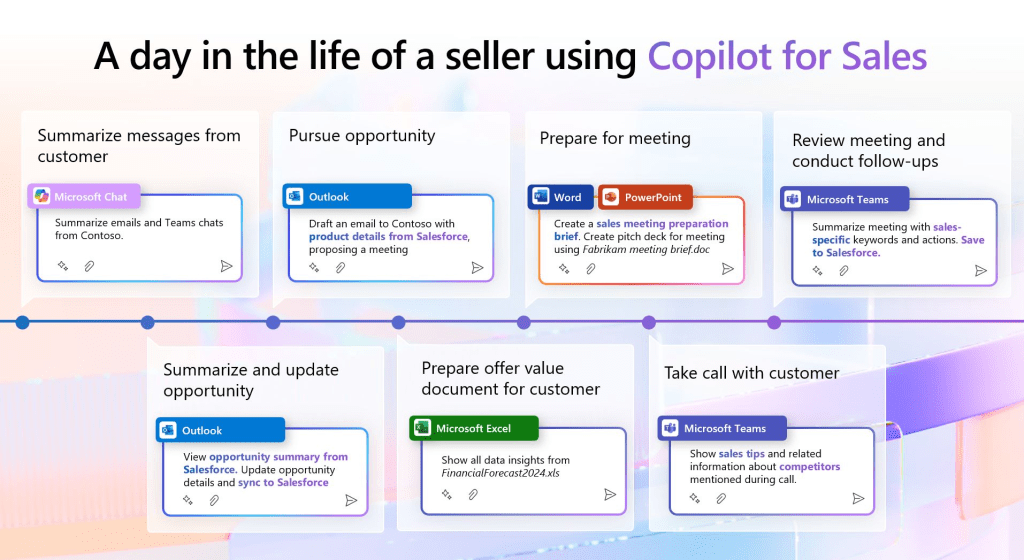
(borrowed from here)

How Copilot for Sales Transforms the Sales Process:

  • Smart Integration: Built upon the foundation of Copilot for Microsoft 365, Copilot for Sales extends these capabilities into CRM systems such as Dynamics 365 Sales and Salesforce. It seamlessly integrates AI-driven insights directly into everyday applications like Outlook, Microsoft Teams, and Word, streamlining workflow and decision-making processes.
  • Enhanced Productivity Tools:
    • Meeting Preparation: Copilot for Sales simplifies meeting preparations by automatically generating comprehensive briefs in Word, helping sales teams approach each meeting with confidence and thorough preparation.
    • Email Management: It enhances email communication by summarizing key conversation points and identifying actionable insights, allowing sales professionals to focus on responses that drive value and advance the sales process.
    • Dynamic Interaction: In Teams meetings, Copilot for Sales offers real-time sales insights and synthesizes post-meeting summaries that include actionable follow-up tasks and critical conversation highlights, ensuring no details are missed.
    • CRM Updates: Direct CRM updates from Outlook are facilitated by Copilot for Sales, ensuring that all customer interactions are recorded accurately and promptly, without the need for manual data entry or switching between applications.
  • Integration Capability:
    • Works seamlessly with both Salesforce Sales Cloud and Dynamics 365 Sales.
    • Can be configured to connect with other sales solutions, providing flexibility in integration.

Copilot for Sales is also anticipated to enhance its capabilities within Microsoft PowerPoint and OneNote soon, tailoring these platforms even further to support the unique needs of sales teams with advanced CRM connectivity.

Licensing for Microsoft Copilot for Sales

Before diving into the specific details of the licensing requirements, it’s important to understand the general purchase options available for Copilot for Sales. Subscriptions are licensed per user and also include access to Copilot for Microsoft 365, enhancing the value and utility of your investment.

Purchase Options

You can acquire Copilot for Sales through several convenient methods:

  • Direct Purchase Online: Visit the official Microsoft website where you can subscribe directly.
  • Microsoft 365 Admin Center: Administrators can purchase subscriptions directly through the admin center, streamlining management and deployment.
  • Volume Licensing: For larger organizations looking to integrate Copilot for Sales across multiple users, contacting a Microsoft representative to discuss volume licensing options can be advantageous.
  • Certified Cloud Partners (CSP): Engage with authorized Microsoft Partners who can offer tailored purchasing solutions and additional support.

Licensing Details

  • Basic Cost: Microsoft Copilot for Sales is priced at $50.00 per user per month, with an annual commitment required.
  • Required Base Licenses:
    • A prerequisite for utilizing Copilot for Sales is a product license for one of the following:
      • Microsoft 365 E3 or E5
      • Microsoft 365 Business Standard or Business Premium
      • Office 365 E3 or E5
    • Note that versions of these suites that do not include Microsoft Teams are also compatible with the requirement to purchase Copilot for Sales.
  • Additional Licensing Options:
    • Existing customers who have Copilot for Microsoft 365 licenses can add Copilot for Sales for an additional $20 per user per month.
    • Dynamics 365 Sales Premium customers will need to pay $30 per user per month for the full Microsoft Copilot for Sales experience.

This licensing structure ensures that organizations can effectively budget and plan for the integration of this powerful AI tool into their sales processes, facilitating better customer interactions and streamlined operations.

Administration, Setup, and Configuration of Copilot for Sales

Overview

Setting up Microsoft Copilot for Sales requires careful administration to ensure that all features are optimally utilized and that data sharing complies with both Microsoft’s and any applicable third-party CRM terms. Here’s a summary of what you need to know about the administration roles and the setup process:

Administrator Requirements

  • Installation Authority: A Microsoft 365 global administrator is needed to install and configure Copilot for Sales. This role also involves enabling data sharing with CRM services outside of Microsoft 365, which requires consent from administrators and users to link their Microsoft work accounts with their CRM accounts.

Role Assignments and Privileges

  • For Dynamics 365 Sales:
    • Administrators: Those assigned as System Administrator or System Customizer have automatic privileges to customize Copilot for Sales. For custom security roles, additional privileges must be manually assigned.
    • Users: Sales personnel must be assigned either the Sales Manager or Salesperson role to utilize Copilot for Sales effectively. Like administrators, users with custom roles may require additional privileges specifically for accessing Copilot for Sales functionalities.

Custom Security Role Adjustments

  • Dynamics 365 Administrators: If utilizing custom security roles, it is necessary to assign specific privileges such as ‘Read’ on the User table to allow necessary customization access for Copilot for Sales.
  • Dynamics 365 Sellers: Similar to administrators, sellers with custom security roles need to be granted appropriate privileges to ensure they can fully leverage Copilot for Sales without encountering permission errors.

Deployment Guide

For step-by-step instructions on deploying Copilot for Sales within your Dynamics 365 environment, Microsoft provides detailed deployment guides. These resources are invaluable for ensuring a smooth setup and can be accessed through links provided in Microsoft’s official documentation.

Security and Data Access for Copilot for Sales

Overview

Understanding how Copilot for Sales manages data security and access is crucial for users who rely on the Azure OpenAI Service to power AI-driven sales insights. Here’s a succinct overview of key points concerning data security, access, and geographical considerations associated with using Copilot for Sales.

Data Usage and Security

  • Azure OpenAI Service: Copilot for Sales utilizes this service to generate AI-derived content. Importantly, the service does not use or store content for monitoring or modifying user actions or outputs; its role is strictly to facilitate the AI features of Copilot for Sales.
  • Privacy and Access: No Microsoft personnel have access to the content generated or processed by Copilot for Sales. Users are solely responsible for the use of AI features, bearing all associated risks.

Data Residency and Movement

  • Geographical Availability: While Copilot for Sales is accessible globally, the Azure OpenAI Service that supports it operates only in specific regions. This means that data, including personal data, may need to move outside your primary data residency region to where Azure OpenAI services are available.
  • Consent for Data Movement: Users must opt in to allow their data to move outside their region to an Azure OpenAI endpoint in a different region. This consent is managed through the admin settings within your system. Without consent, key features of Copilot for Sales will not be available, such as generating meeting insights.
  • Handling of Data Across Regions:
    • In regions like Australia, the United Kingdom, and the United States, data does not move across regions, and no specific user action is required.
    • In the European Union, data does not move outside the EU Data Boundary if the CRM environment is hosted there, aligning with local data protection regulations.
    • For other regions including Asia, Brazil, and Canada, among others, users need to provide explicit consent in admin settings to enable data movement.

Implications for Users

Users should be aware of where their data is hosted and understand the implications of data movement across borders. This understanding is crucial for compliance with data protection laws and to ensure that data privacy is maintained according to organizational standards and local regulations.

By carefully managing settings and understanding the security protocols associated with Copilot for Sales, organizations can safeguard their data while benefiting from advanced AI capabilities in their sales operations.

Conclusion

Microsoft Copilot for Sales integrates cutting-edge AI technology with essential CRM platforms to revolutionize the sales process, enhancing productivity, streamlining workflows, and fostering deeper customer relationships. By understanding and implementing this powerful tool, organizations can significantly improve their sales outcomes and drive business growth. This guide provides an essential overview of what Copilot for Sales offers, how it functions within your sales environment, and the considerations for licensing, security, and setup to help you make the most of this innovative technology.

Transforming Productivity: How to Harness the Power of Copilot in Microsoft 365

Introduction

In my previous blog post, I aimed to offer a comprehensive guide on the overview of Microsoft Copilot, including paths to achieving success by making the most out of it. I encourage you to take a moment to read it and gain a broader understanding of the landscape in which Copilot for Microsoft 365 operates. This background will provide valuable context as we dive deeper into its capabilities and how it can transform your work within the Microsoft ecosystem.

In this blog, we’ll take a closer look at Copilot for Microsoft 365, exploring its features, how to get started, practical use cases, user experiences, potential challenges, licensing requirements, and what the future may hold. Join me as we navigate through the ins and outs of integrating Copilot into our daily routines, enhancing our productivity with this powerful tool. Whether you’re a seasoned pro or new to Microsoft 365, there’s something here for everyone as we delve into how Copilot can transform the way we work.

The Integral Role of Microsoft 365 in Our Daily Lives

Starting from ourselves, when we look around, it’s clear to see that Microsoft 365 tools have become an integral part of our day-to-day lives, spanning both personal and professional realms. Whether it’s crafting or editing text-based content in Microsoft Word, the go-to application, or presenting structured information visually through PowerPoint, these tools have cemented their place in our daily routines. Microsoft Excel, renowned for its balance of complexity and simplicity in calculations, computations, reporting, data manipulation, and visualization, has been a staple for many years. There’s no question that Microsoft Outlook and Teams sit at the heart of our daily communication and collaboration, especially in our professional lives. With the advent of cloud services becoming a standard in the past decade, all these tools have now been combined and rebranded under Microsoft 365 by Microsoft, offering an unmatched capability of extension to other technologies on a larger scale. This is where the golden opportunity to adopt Copilot alongside our familiar companions arises, for both personal and professional use, to significantly boost our productivity. Within the Microsoft productivity ecosystem, these tools primarily used to rely on the user’s own efforts and skills to produce high-quality and rich content. Copilot, with its assistive nature, unveils incredible possibilities to elevate human intelligence by saving a tremendous amount of time and effort on any tedious task.

Practical Use Cases

Below,are some practical use cases for Copilot across Microsoft Word, PowerPoint, Excel, Outlook, and Teams, showcasing how Copilot can transform our daily workflows and enhance our digital experiences.

  • Microsoft Word:
    • Content Creation & Editing: Use Copilot to generate draft documents or blog posts based on an outline or topic. It can also suggest improvements to your writing, such as grammar corrections, style enhancements, and more concise language.
  • PowerPoint:
    • Presentation Design & Refinement: Copilot can help design compelling presentations by suggesting layouts, themes, and even generating entire slide decks from a summary. It can also recommend visual enhancements and data visualization techniques to better convey your message.
  • Excel:
    • Data Analysis & Visualization: Leverage Copilot to analyze complex datasets, perform predictive analysis, and automatically generate charts and graphs. It can help identify trends, summarize data insights, and even suggest actions based on the analysis.
  • Outlook:
    • Email Drafting & Management: Use Copilot to draft emails by providing a brief summary of what you intend to communicate. It can suggest responses to incoming emails, help manage your inbox by highlighting important messages, and schedule meetings based on email conversations.
  • Teams:
    • Meeting Summarization & Action Item Tracking: Copilot can provide real-time meeting transcriptions in Teams, summarize key discussion points, and track action items. It enhances collaboration by organizing conversation threads and extracting unresolved questions or decisions needed.

Understanding Copilot for Microsoft 365 with Visual Architecture Insights

I’m sharing two insightful visuals from Microsoft documentation below, which will save us countless words in explaining the mechanics behind the scenes.

In the diagram below, which I’ve enhanced with three layers from my own perspective, you’ll get a comprehensive view of the logical architecture of the solution operating behind the scenes.

source link

The Frontend Layer, in my own words, comprises the Microsoft 365 applications that users engage with daily for productivity and collaboration. This suite of Microsoft 365 applications will continue to serve as the interface to harness the capabilities offered by Copilot for Microsoft 365. Users will experience Copilot features as seamlessly integrated enhancements within the tools they are accustomed to. Imagine an add-on within Outlook that appears in or above your email previews with actionable commands, or a side pane in your Word, Excel, or PowerPoint documents facilitated by an add-on that empowers you to generate content or analyze data within the current context. Within Microsoft Teams, Copilot’s potential extends even further, assisting in organizing conversational content into summaries/notes, identifying unresolved questions from discussions, and more.

The Service Layer, from my perspective, acts as a crucial bridge connecting organizational data with user experience, seamlessly integrating complex logical components for the computations of Copilot technology. The true strength of Copilot for Microsoft 365 lies in its ability to unravel complexity through the use of Microsoft Graph services and components, leveraging your existing organizational data and services to its advantage.

The Data Layer, forming the backbone of the entire framework, is pivotal in deriving the most meaningful and contextual benefits from GenAI. By accessing data across personal, team, and organizational levels, Copilot is equipped to process and produce content from various sources tailored to your specific use case. Furthermore, by leveraging the existing Microsoft 365 infrastructure and security capabilities, Copilot ensures that the data involved in your workflows adheres to the stringent security and compliance policies and requirements of your business.

The short video below offers an excellent depiction of the data flow and the components involved in the Microsoft 365 Copilot system from start to finish. As a huge fan of visualizations, I highly recommend taking just under two minutes to watch it. I have no doubt that it will provide memorable insights that you’ll recall whenever you utilize Copilot in your own projects.

Getting Started with Copilot for Microsoft 365

Activating Copilot for Microsoft 365 involves several steps to ensure you have full access to its range of features across different applications like Word, Excel, PowerPoint, Outlook, and Teams. Here’s a step-by-step guide to get you started:

Step 1: Verify Your Subscription

  • Ensure you have an active Microsoft 365 subscription that includes access to Copilot features. Copilot may require a specific tier of subscription, so check Microsoft’s official documentation for eligibility.

Step 2: Update Your Microsoft 365 Suite

  • Open any Microsoft 365 application (Word, Excel, etc.).
  • Go to File > Account (or Office Account in some applications).
  • Under Product Information, choose Update Options > Update Now to ensure your suite is up to the latest version.

Step 3: Sign in to Your Microsoft Account

  • If not already signed in, enter your Microsoft 365 account credentials to log in. Copilot features are linked to your subscription, so this step is crucial. Microsoft Entra account (i.e. Azure Active Directory (Azure AD)) is required to authenticate and use Copilot features.

Step 4: Access Copilot Settings

  • In the application of choice (e.g., Word), go to the File menu and select Options.
  • Look for a tab or section named Copilot or similar. The exact location might vary based on the app and the current updates.

Step 5: Activate Copilot Features

  • Within the Copilot settings, toggle the features you wish to enable. There might be general settings to activate Copilot or more specific options tailored to each application’s capabilities.

Step 6: Start Using Copilot

  • Begin your task, such as drafting an email in Outlook or creating a document in Word.
  • Invoke Copilot by using the built-in commands, suggestions, or the Copilot pane, depending on the application. Instructions or prompts within the app can guide you on how to interact with Copilot for specific tasks.

Step 7: Customize Your Experience

  • As you use Copilot, adjust its settings and preferences to better suit your workflow. This might include customizing suggestions, setting up specific commands, or tailoring how and when Copilot interacts with your content.

Additional Tips:

  • Stay Updated: Regularly check for updates to Microsoft 365 and Copilot to access new features and improvements.
  • Explore Tutorials and Resources: Microsoft offers tutorials and guides on leveraging Copilot in Microsoft 365. These can be invaluable for understanding advanced functionalities.

By following these steps, you should be able to successfully access and activate Copilot across your Microsoft 365 applications, enhancing your productivity and making the most of AI-powered assistance.

Conclusion

As we wrap up this deep dive into Copilot for Microsoft 365, it’s clear that this tool is not just about enhancing productivity; it’s about transforming how we interact with technology to create, collaborate, and communicate. From drafting documents in Word to analyzing data in Excel and streamlining communications in Outlook and Teams, Copilot stands as a testament to the future of work.

I encourage you to take these insights, explore the capabilities of Copilot for yourself, and start integrating these advanced tools into your daily routines. Dive in, explore, and don’t hesitate to share your journey and successes, your feedback and stories could inspire others.

Stay tuned for more posts in this series, where we’ll explore other Copilot versions, each designed to revolutionize different facets of our digital workflows and creativity.

3 Paths to Success with Microsoft Copilot: A Comprehensive Guide

In the ever-evolving landscape of technology, Microsoft has once again positioned itself at the forefront of innovation with the introduction of Microsoft Copilot. This transformative tool is designed to redefine how professionals across various industries interact with digital content, data analysis, and computational tasks. This blog post aims to provide a comprehensive overview of Microsoft Copilot, including its functionalities, example use cases, and the types of Copilots available.

What is Copilot?

Microsoft Copilot is an AI-powered assistant designed to make your life easier, whether you’re a developer, writer, or creative thinker. Think of it as your trusty sidekick—an intelligent companion that assists you in various tasks.

(borrowed from – https://lnkd.in/gHkEFu-D)

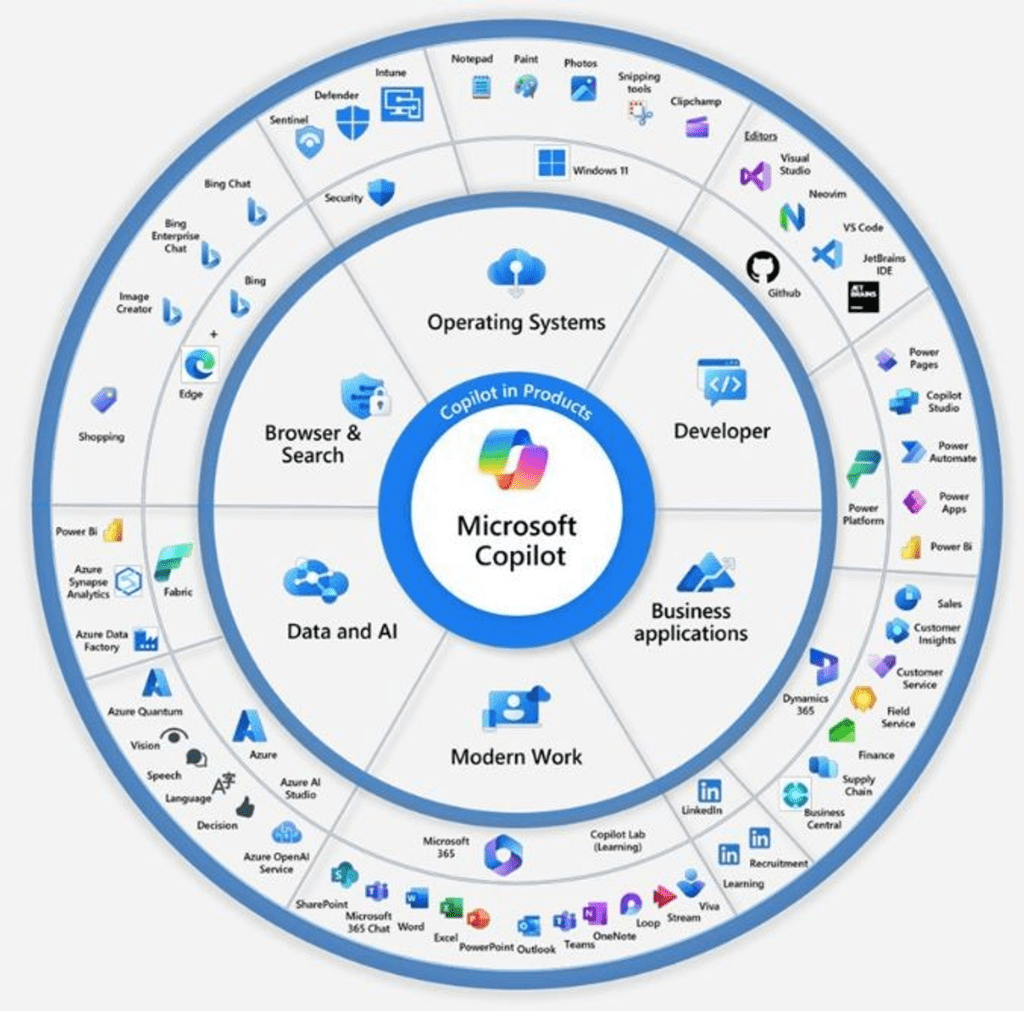
I really like this image that shows how central Microsoft Copilot is for helping everyone get more done, from everyday tasks to big work projects. It’s like having a helper for your own web searches and making those boring tasks quicker to finish, while also being a powerhouse for tech experts who need a boost in their complex work. Plus, when it’s used in businesses, it acts like the perfect partner, making sure companies get the most out of their investments by pushing the limits of what they can achieve in terms of productivity and success.

This picture perfectly captures the big picture of what Microsoft Copilot does. It’s not just a tool; it’s like a right-hand man for anyone who uses it, making work and personal tasks a lot smoother and pushing us to do our best, no matter the job.

3 paths on your Copilot Journey

Path 1: Adopt Copilot Assistants offered by Microsoft

Microsoft Copilot extends its capabilities across a variety of platforms, ensuring that no matter your profession or need, there’s a Copilot designed for you. If you identify a fit with built-in capabilities of any offered Copilots by Microsoft, that could be your shortest journey for productivity and success.

Let’s explore the array of Copilot products available, highlighting their key features and potential applications:

  • Dynamics 365 Copilot
    • Description: Provides AI-driven insights within Dynamics 365 to support better business decisions.
    • Top Features: Summarizes customer interactions, forecasts sales trends, and automates repetitive tasks.
    • Use Cases: Enhancing CRM effectiveness, sales prediction accuracy, and operational efficiencies.
  • Power Platform Copilot
    • Description: Assists in creating custom apps, automating workflows, and analyzing data with ease.
    • Top Features: Offers design suggestions, auto-generates code for automation, and delivers insightful data analysis.
    • Use Cases: Building custom applications, streamlining complex workflows, and enabling informed decision-making.
  • Copilot for Azure
    • Description: Aids Azure users in managing and optimizing their cloud environments with the power of AI.
    • Top Features: Automated cloud resource management, AI-driven cost optimization suggestions, and security compliance assistance.
    • Use Cases: Streamlining cloud operations, reducing costs through intelligent resource allocation, and ensuring security standards are met efficiently.
  • Copilot for Service
    • Description: Enhances customer service experiences by providing AI-powered support and insights.
    • Top Features: Real-time customer query resolution suggestions, sentiment analysis to gauge customer satisfaction, and automated response drafting for common inquiries.
    • Use Cases: Improving response times and quality in customer service, understanding customer needs better through sentiment analysis, and streamlining the customer support workflow.
  • Microsoft 365 Copilot
    • Description: Seamlessly integrates with Microsoft 365 applications to boost productivity across Word, Excel, PowerPoint, and more.
    • Top Features: Aids in content creation, simplifies data analysis, and guides presentation design.
    • Use Cases: Crafting documents, analyzing and visualizing data, and creating engaging presentations efficiently.
  • Copilot for Windows
    • Description: Integrates deeply with the Windows operating system to provide assistance across applications and tasks.
    • Top Features: Contextual assistance, task automation, and personalized recommendations.
    • Use Cases: Simplifying daily tasks, enhancing productivity, and personalizing the Windows experience.
  • Viva Sales Copilot
    • Description: Enhances the sales experience by integrating CRM platforms with Outlook and Teams.
    • Top Features: Automatically fills in CRM data, crafts personalized emails, and delivers actionable insights from customer data.
    • Use Cases: Streamlining sales workflows, improving customer interactions, and automating data entry.
  • GitHub Copilot
    • Description: Supports developers by suggesting code and functions in real-time, enhancing coding workflows.
    • Top Features: Context-aware code suggestions, multi-language support, and adaptive learning from user coding patterns.
    • Use Cases: Speeding up software development, improving code quality, and facilitating learning of new languages or frameworks.
  • Copilot Studio
    • Description: A creative sandbox that allows users to craft, simulate, and test AI models and experiences.
    • Top Features: Intuitive design interface, real-time AI model testing, and collaboration tools.
    • Use Cases: Designing AI-driven applications, prototyping new ideas, and collaborating on innovative projects.

Each Copilot product is thoughtfully designed to address specific needs, whether it’s managing sales data, developing software, creating content, or enhancing the Windows experience. With these tools at your disposal, you’re well-equipped to navigate the challenges of the modern digital landscape with greater ease and efficiency.

Path 2: Extend Copilots

Just like with many other Microsoft platforms and tools, Copilot also offers the flexibility to be customized for unique experiences. Sometimes, you might find that the standard Copilot setup doesn’t quite hit the mark for your specific needs, possibly because it doesn’t have access to certain data or services you rely on. This is where Microsoft’s extension capabilities come into play, opening up a world of possibilities for developers or ISVs to create plugins or connectors. These custom solutions allow Copilot to seamlessly integrate with external APIs or data sources, bridging any gaps.

In enterprise environments, where integrating new solutions often involves navigating through a maze of constraints or requires additional engineering efforts, the ability to extend Copilot becomes invaluable. By tapping into these extension capabilities, you can significantly enhance the core functionalities of Copilot assistants. This means you can tailor them to work perfectly with your own APIs and data, crafting a solution that’s perfectly aligned with your specific user journeys. It’s a way to not just use Copilot, but to truly make it your own, ensuring it delivers exactly what you need, right where you need it.

Thanks to its extensive extendibility through plugins, Microsoft Graph connectors, and message extensions. Here’s a closer look at how extending its capabilities can tailor it more closely to your specific requirements:

  • Plugins: These act as bridges, enabling Copilot to directly fetch and utilize external data, from the latest news to project-specific details. For those looking to integrate data from outside applications, Power Platform connectors are a particularly useful type of plugin, allowing for the creation of custom apps and workflows that feed directly into Copilot for Microsoft 365 and Power Platform.
  • Microsoft Graph connectors: These connectors play a crucial role in bringing external content into the Microsoft 365 ecosystem, making it accessible through Copilot. They’re all about connecting, organizing, and managing external data, ensuring it’s readily available where and when you need it.
  • Message extensions: Focused on Microsoft Teams, these extensions enable a more interactive experience by allowing users to access and share external service information directly within their chat conversations. It’s a practical way to extend Copilot’s functionality into the collaborative space of Teams.
  • Microsoft Copilot Studio: Adding to the suite of extensions is Copilot Studio, a low-code environment designed for building solutions that leverage your business data. It simplifies the integration of custom data into Copilot for Microsoft 365, enabling non-technical users to add logic and data connections through an intuitive drag-and-drop interface.

Each of these extensions serves to enhance Copilot’s utility, making it not just a tool but a comprehensive assistant that can be customized to fit the intricacies of your work environment. By integrating these extensions, you can ensure that Copilot aligns with your specific data needs and workflows

Path 3: Build your own Copilot

In the realm of digital assistance, Microsoft Copilot stands out not just for its ready-to-use capabilities but also for the possibility it offers to craft a Copilot that’s uniquely yours. Using a blend of Azure OpenAI, Cognitive Search, Microsoft Copilot Studio, and other Microsoft Cloud technologies, you can develop a conversational AI that speaks directly to the needs of your users, integrating seamlessly with your company’s data and documents. Imagine creating a Copilot that offers a chat interface for quickly accessing help desk tickets or knowledge base articles, simplifying the search process with a conversational UI that cuts through the clutter.

Building Blocks for a Custom Copilot

  • Conversational AI with Azure OpenAI and Cognitive Search: This setup enables the creation of an advanced platform where users can interact with company data and documents in natural language. It’s about making information retrieval and task completion as intuitive as speaking.
  • Solution Accelerators and Samples: To jumpstart your custom Copilot development, Microsoft provides accelerators and samples. These resources are designed to guide you through integrating your data with Azure OpenAI models, embedding conversational AI into your applications, and more.
  • Microsoft Copilot Studio: Beyond extending the capabilities of Copilot for Microsoft 365, Copilot Studio offers a low-code environment for building your own AI-driven chatbots and GPTs. Whether it’s for simple queries or complex problem-solving, Copilot Studio makes the creation process accessible, with the added benefit of integration across digital platforms like websites, mobile apps, and even Microsoft Teams.

Envisioning Your Custom Copilot

Creating your own Copilot is more than just a technical project; it’s an opportunity to enhance how your organization interacts with data, simplifies tasks, and communicates both internally and externally. With tools like Azure OpenAI, Cognitive Search, and Copilot Studio, you’re equipped to build an AI that not only understands your business but also enhances your digital ecosystem with intuitive, conversational interactions.

Conclusion

Microsoft Copilot is here to shake up the way we work, serving up a variety of AI-powered tools that promise to make our professional lives easier and more productive. Whether it’s diving into the wealth of pre-built assistants, tweaking things with plugins for that perfect fit, or crafting your very own Copilot with the help of Azure OpenAI, there’s something for everyone looking to up their game. It’s about making work feel less like work and more like achieving with a trusted friend by your side. And this is just the beginning! I’m excited to keep exploring and sharing insights on Copilot and other revolutionary tools. Stay tuned for more posts where we’ll continue to uncover the future of work together, making it smarter, faster, and a whole lot more fun.

Continue reading my next post in this blog series: Transforming Productivity: How to Harness the Power of Copilot in Microsoft 365

How to Install Viva Sales for Outlook in 5 Steps

💡 Pre-requisite: to be able to install and configure Viva Sales for Outlook you need Microsoft 365 Administrator access.

Microsoft has recently released Viva Sales as a companion app , which is designed to enhance the seller experience for salespeople by integrating their CRM platform with MS Outlook and Teams. Viva Sales for Outlook allows salespeople to sign in and access their CRM system (Dynamics 365 or Salesforce) from Outlook, create new contacts with prefilled information, view account and opportunity details, and save emails to their CRM system and much more.

This post will guide you through a simple 5-step process to install the Viva Sales app and enable users in your organization to utilize its key features.

Step 1: Navigate to App Source to locate Viva Sales for Microsoft Outlook app

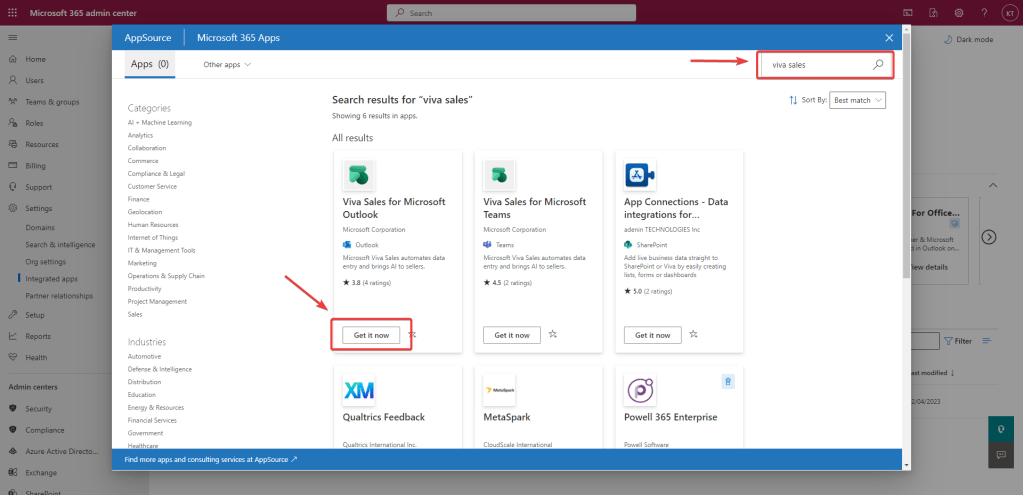
To begin the installation, you can find the Viva Sales for Microsoft Outlook app on the Microsoft App Source Marketplace using either of the two available paths.

1. Via Microsoft 365 Admin Center

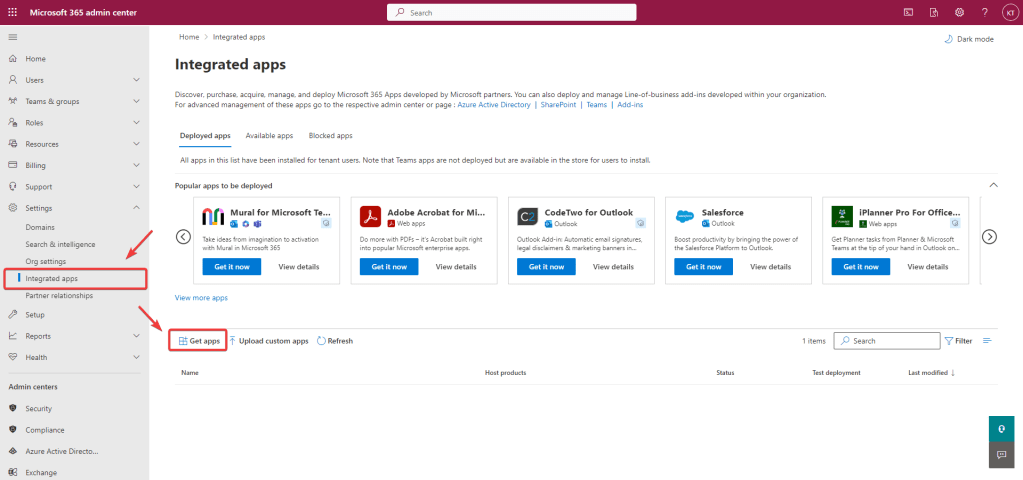
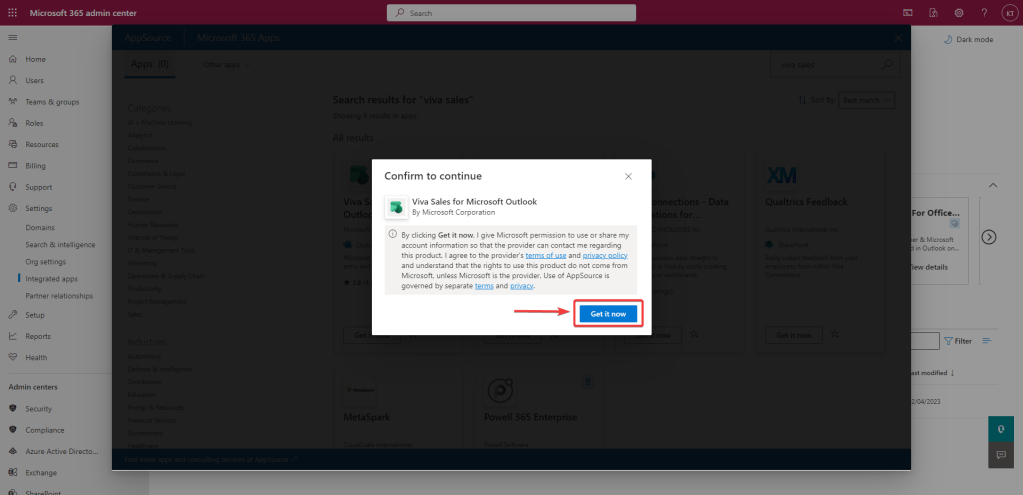
Once you navigate through > Settings > Integrated Apps and click on Get Apps button, App Source will launch in a modal dialog to allow you to search and find the app within admin center.

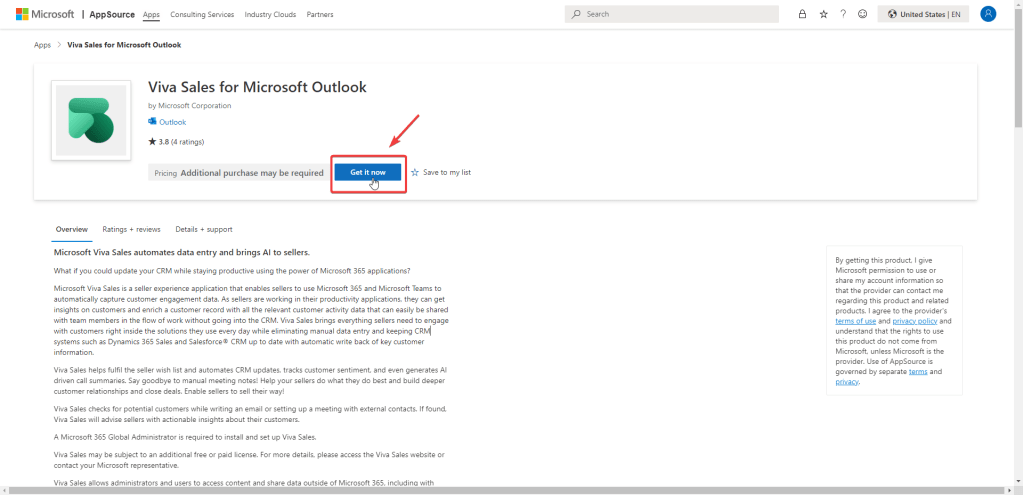
2. Via Microsoft App Source Marketplace

When you navigate through this path, you will be redirected to Microsoft 365 admin center to complete the installation.

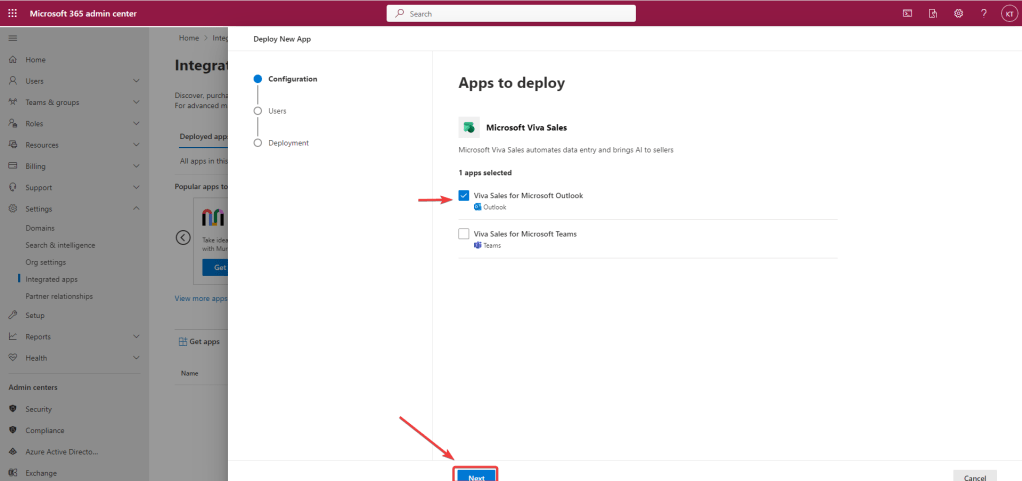
Step 2: Select Apps to deploy

While Viva Sales offers companion apps for both Outlook and Microsoft Teams, this post will solely focus on setting up the app for Outlook. However, it’s worth noting that you have the option to deploy the app for both platforms simultaneously or separately.

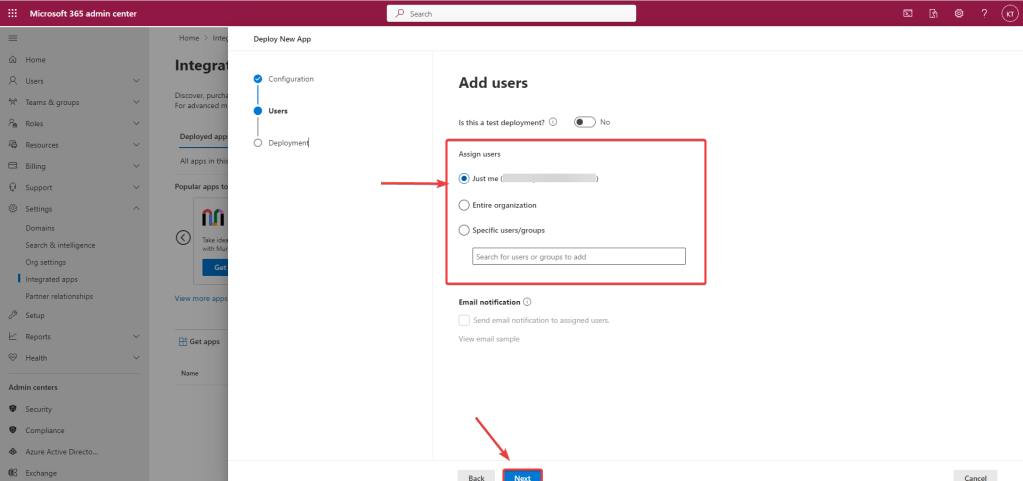
Step 3: Add users

During this step, you can choose which users will be assigned the Viva Sales app. You have the option to limit it to yourself initially and then assign it to additional users after installation. Alternatively, you can assign it to the entire organization so all users have immediate access after deployment. Another option is to initially release the app to a selected list of users or groups within your domain.

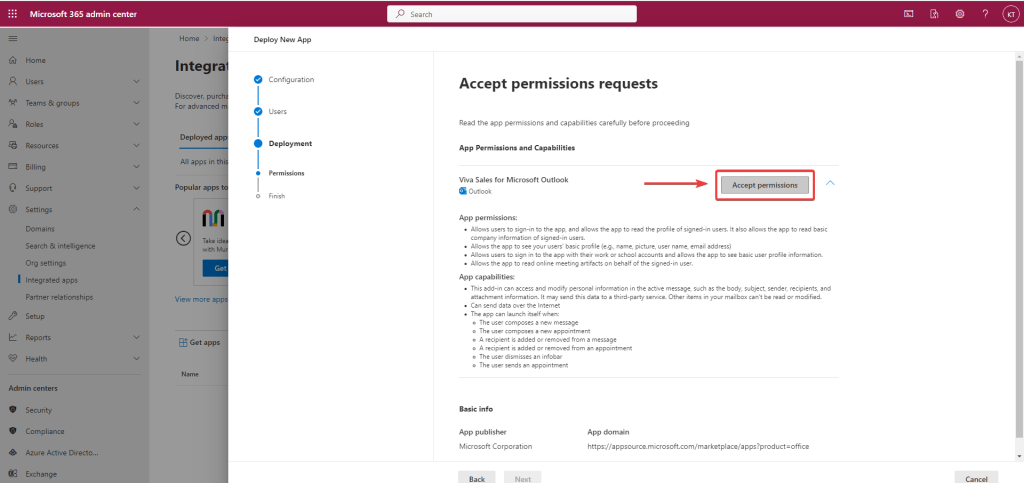
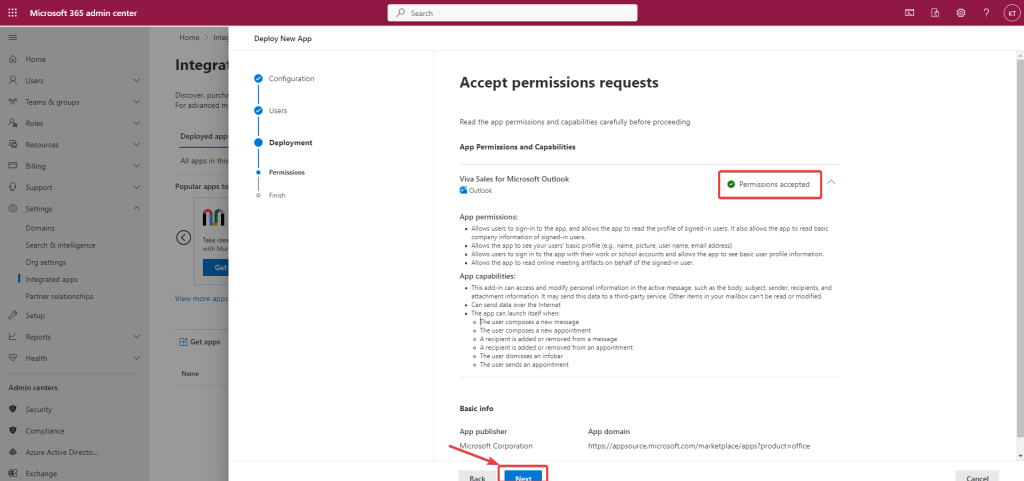
Step 4: Accept permission requests

To function as an add-on to Outlook, the Viva Sales app needs permission to access and update data from email messages, appointment details, and other Outlook contexts. The app also requires authorization to act on behalf of the user for necessary operations in Outlook and Dynamics 365. All permissions and capabilities required by the app are outlined in this step for the admin to provide consent based on their organization’s security policies. It’s important to carefully review these details before enabling the app for your organization.

Step 5: Review and Finish Deployment

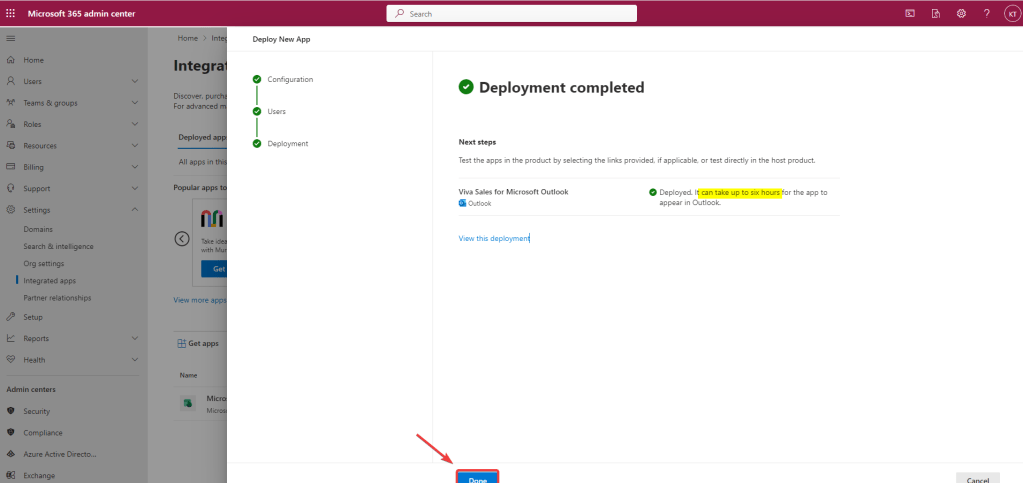
Once all previous steps completed you can then review the information provided to finalise the deployment. Once you confirm, deployment process will start executing asynchronously at the backend and as mentioned in the information message on screen it may take up to 6 hours for your users to get the app on their Outlook.

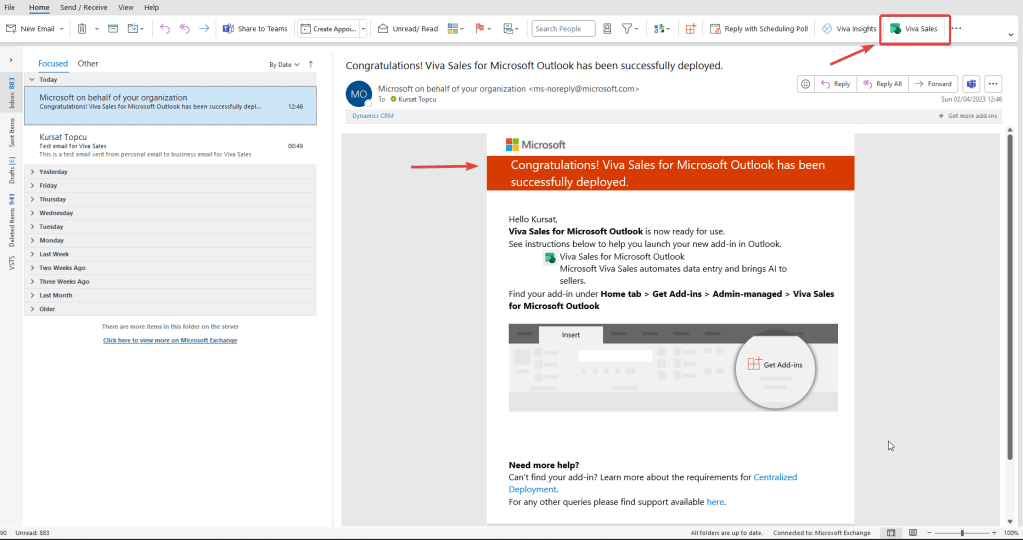
Once deployment is complete, users will receive a confirmation email from Microsoft including the guidance on how to start using the app.